

Visualize
Paint color visualizer for your own room photo
To see a paint color on your own wall, upload a photo of the room, mark the wall you would paint, and name the color and finish in the note. Without a style, Interify repaints only the marked wall and leaves the trim, ceiling and furniture as they were.
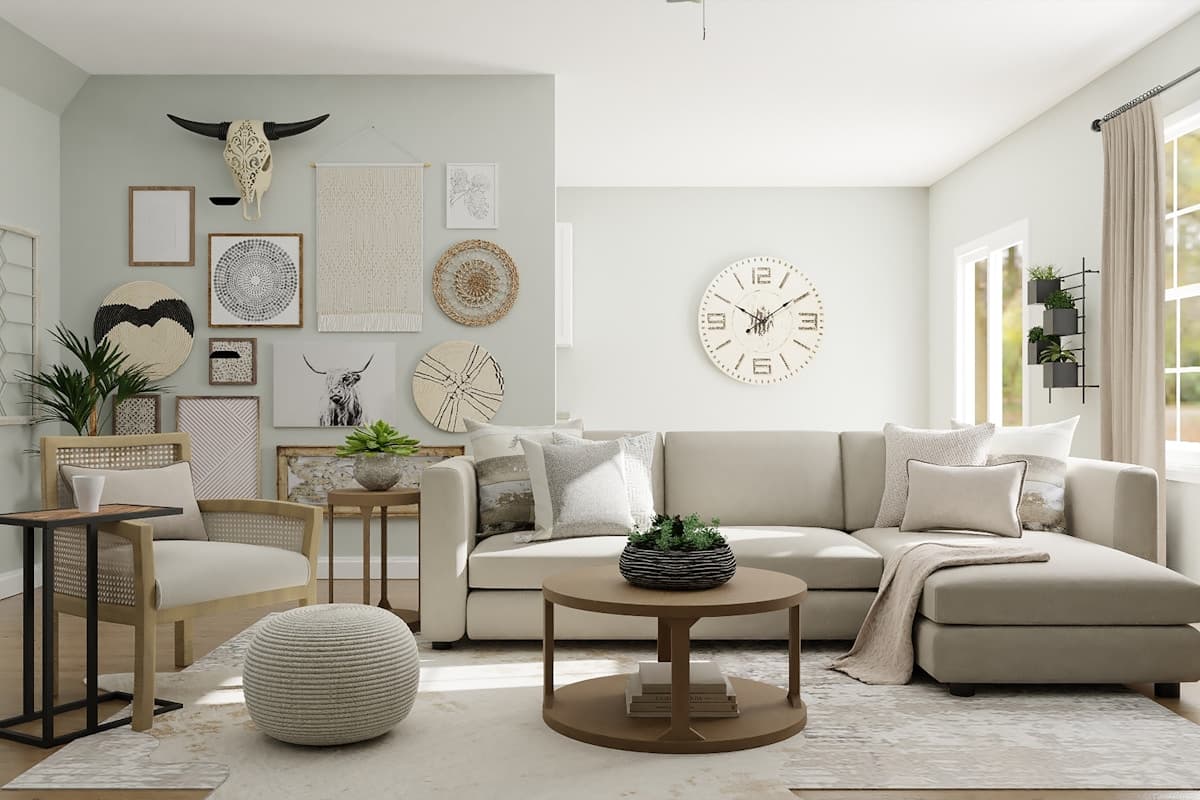
- One wallDeep inky blue, matte, white trim and ceiling unchanged
Key facts
- Mark and describe
- Rectangle, lasso and marker tools outline the areas to change; each area gets its own note.
- Cost of a version
- 1 credit. Packs start at $9 for 30 credits, down to $0.16 a credit
- Time per version
- Usually about a minute
- Output
- HD results, up to 3072 px
How to do it in Interify
Photograph the wall in daylight
Turn the lamps off and shoot the wall with the room's own daylight. Mixed light distorts the color that is already there, and the preview starts from what the photo shows.
Mark the wall with the rectangle tool
Draw a rectangle over the wall. If you only want part of it painted, use the lasso and follow the shape you have in mind instead.
Set the area's action to Change color
Then write the color in the note. Plain words work well: name the color family, how light or deep it is, and whether it is warm or cool.
Name the finish too
Matte, eggshell, satin and semi-gloss reflect different amounts of light, so a finish changes how a color reads. Put it in the same note.
Compare two candidates
Run one version per color, then compare them in the project's history. Two versions of the same wall side by side is a far better test than two chips held up to it.
Notes you can copy
Each marked area carries its own note. Copy one of these and change the words that don't fit your room.
- One wall
- Deep inky blue, matte, white trim and ceiling unchanged
- All visible walls
- Warm off-white with a yellow undertone, matte, same trim color
- Lower wall
- Mid-tone sage on the lower third with a slim rail, lighter above
- Trim and doors
- Paint the trim and door the same color as the wall, eggshell finish
- Ceiling
- Paint the ceiling a half-strength version of the wall color, matte
- Alcove
- Paint the inside of the alcove a deeper shade than the wall around it
Photographing the room
The photo decides how much of the result looks like your room.
- Shoot the wall straight on, not at a sharp angle. A flat view gives the most convincing repaint.
- Keep some trim, floor and furniture in frame. A color is judged against what is next to it, not on its own.
- Don't use the flash. It flattens the wall and hides the texture that makes a repaint look real.
- Take the shot at the time of day you most use the room, then take a second one at another time.
- If the wall is in shadow, move so the daylight falls across it rather than behind you.
Why a paint chip misleads you
A chip is small, held at an angle, and surrounded by white card. On a whole wall the same color reads deeper and more saturated, because there is more of it and because the floor, the ceiling and the furniture all bounce light into it.
That is the gap a preview closes. Seeing the color at wall scale, in your room, with your own floor and light, is the closest you can get before opening a can.
Light direction changes the color
A room's main window decides a lot. North-facing light is steady and cool, which makes cool colors cooler and can turn a soft gray flat. South-facing light is warmer and stronger, and will carry a deeper color better.
Nothing about this is a rule you can apply blind, which is why the honest sequence is narrow down on screen, then test for real.
Finish: matte to semi-gloss
Matte hides a lumpy wall and absorbs light, so the color looks soft and even. Eggshell and satin reflect more, wipe clean more easily, and make the same color look slightly lighter and livelier. Semi-gloss is for trim, doors and places that get touched.
Because finish changes both durability and appearance, write it into the note rather than leaving it out. A matte navy and a satin navy are not the same decision.
Trim, ceiling and the easy mistakes
The default is white trim and a white ceiling, which works almost everywhere. Painting the trim the same color as the wall makes a room feel quieter and taller; a ceiling in a diluted version of the wall color softens the box.
All of these are quick to preview and expensive to get wrong, so they are worth trying on your own photo before you decide.
How to sample properly once you have chosen
Paint a large patch, at least the size of a sheet of paper and ideally bigger, directly on the wall rather than on card. Put it near the trim and near the floor, since those are the colors it has to live with.
Look at it in the morning, in the afternoon and under your lamps at night before you commit. Two coats, and let it dry: wet paint is not the color.
What to expect
What a preview settles, and what it can't.
- On-screen color is an approximation. Your display, your photo's light and the room itself all shift it, so check a real sample on the wall in your own light before buying paint.
- A preview is not a color match. Naming a specific brand color gets you something close in tone, not that exact product.
- It won't tell you how many coats a color needs, or whether it will cover what is on the wall now.
- It won't show the room at night. Previews keep the light that was in your photo.
Examples
Made with Interify, each from one photo and the areas marked on it. Switch a card between the original and the result.
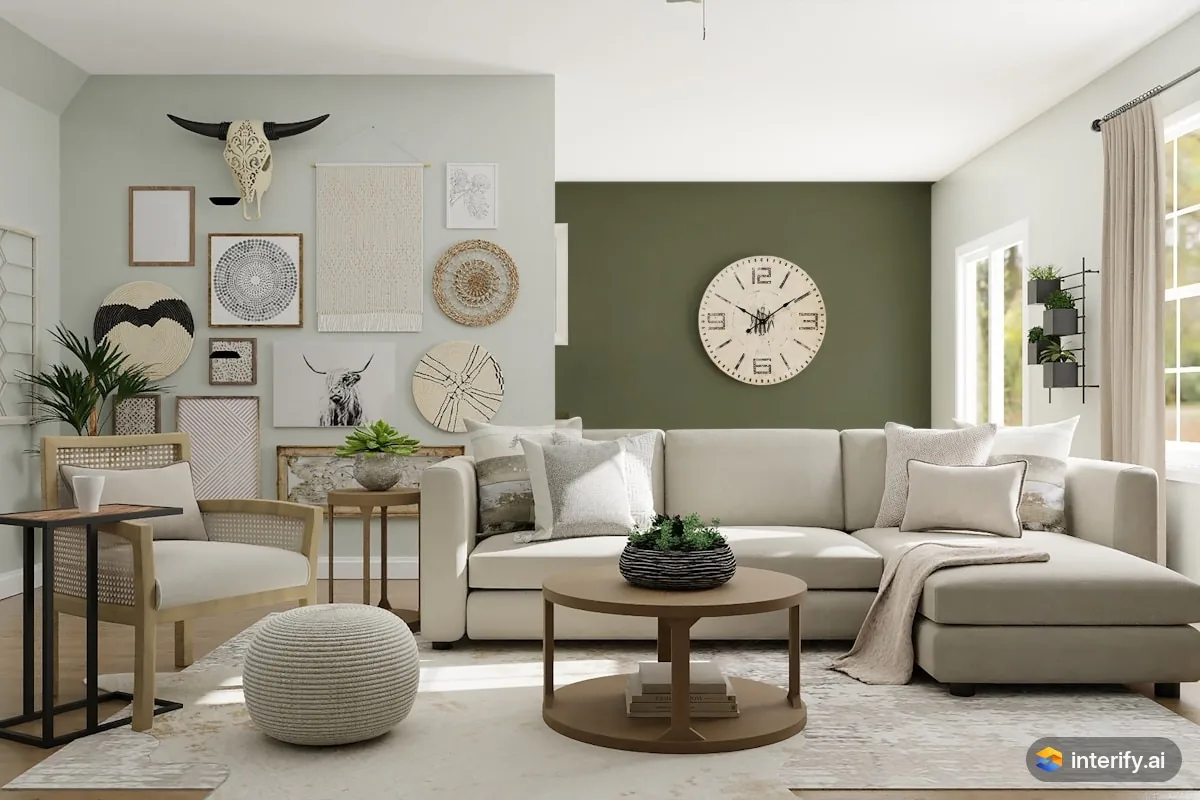
Living room: olive green back wall
Living room
- Paint this wall deep olive green
Made with Interify 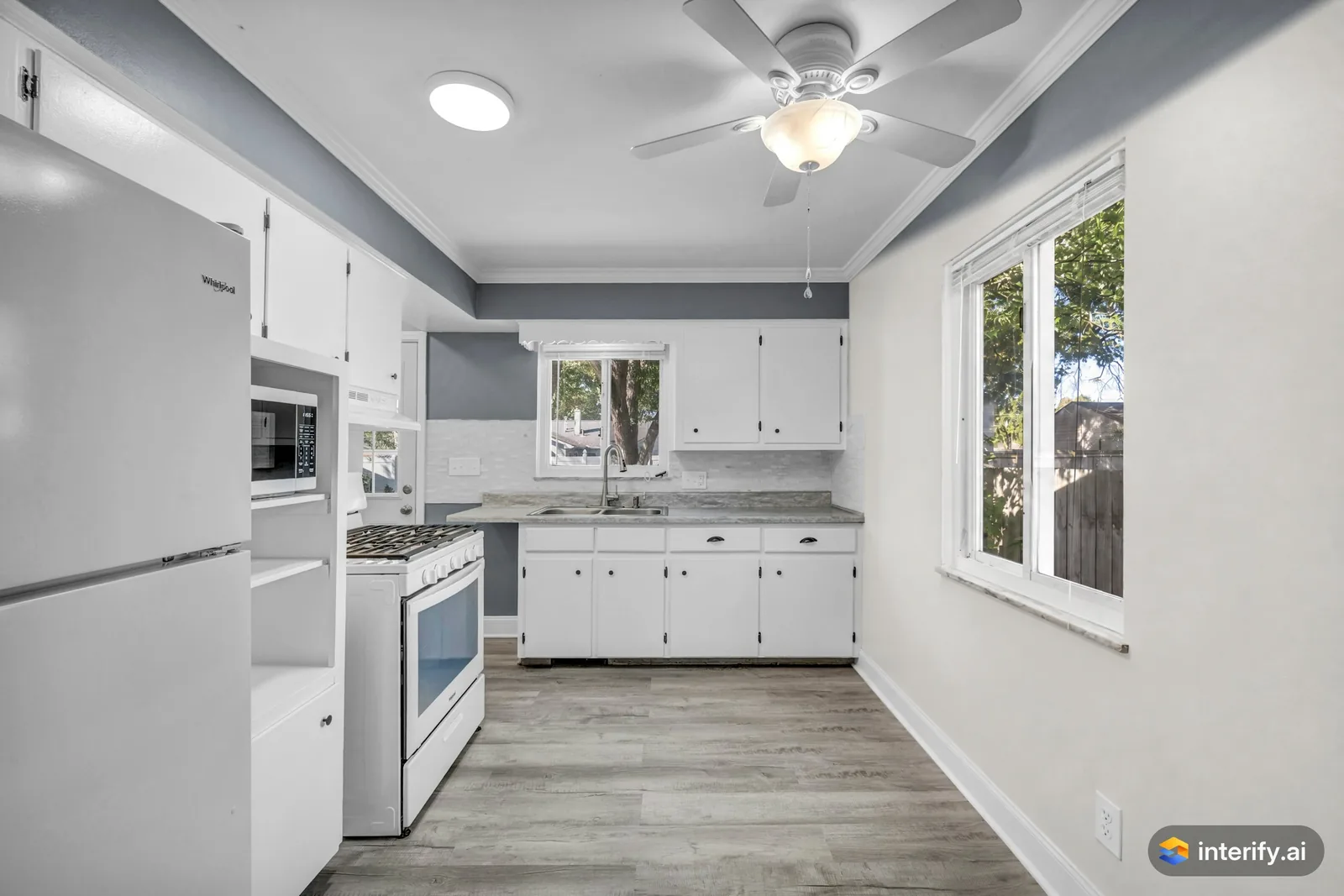
Galley kitchen: warm white walls
Kitchen
- Paint the walls warm white
Made with Interify 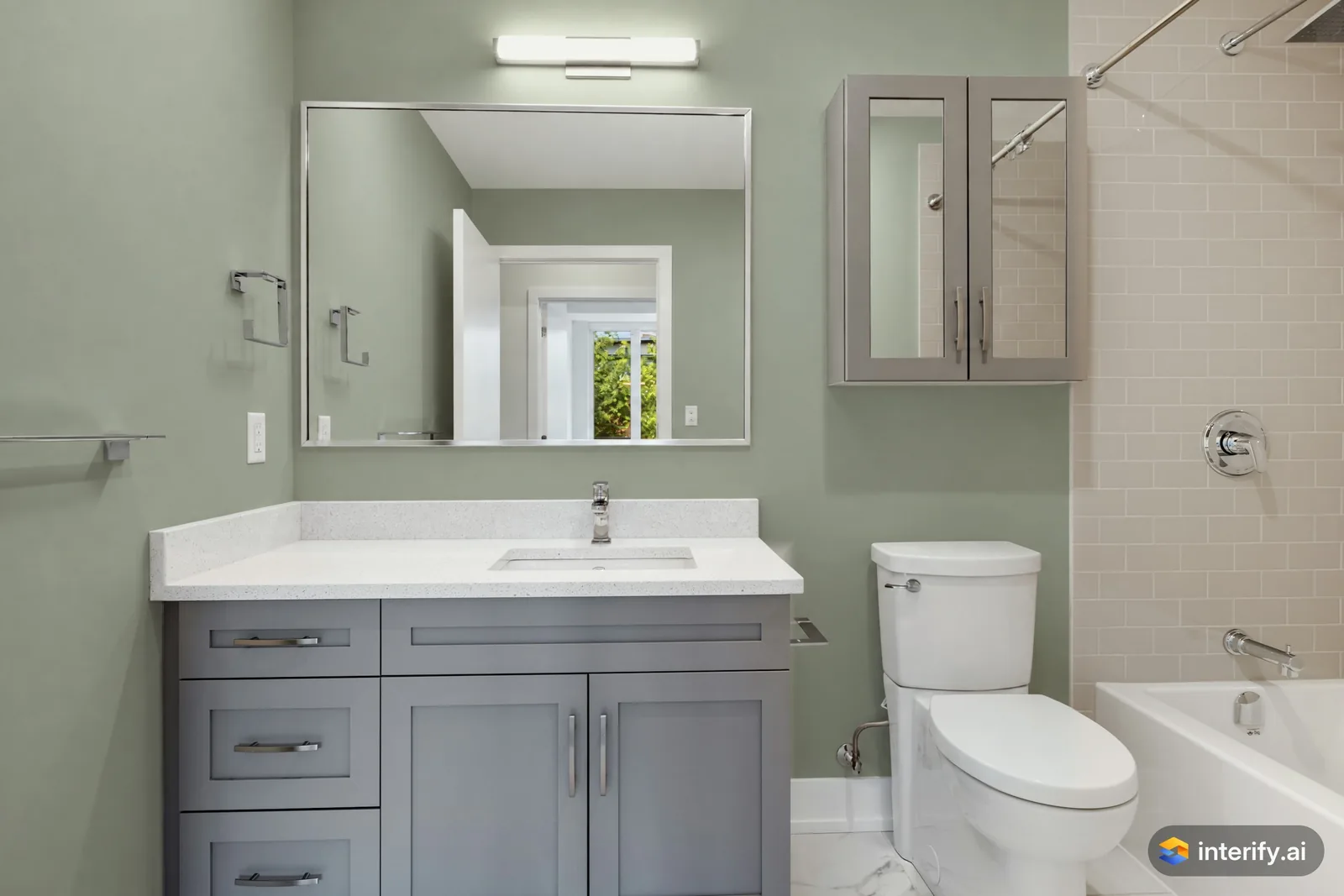
Bathroom: sage green walls
Bathroom
- Paint the walls dusty sage green
Made with Interify 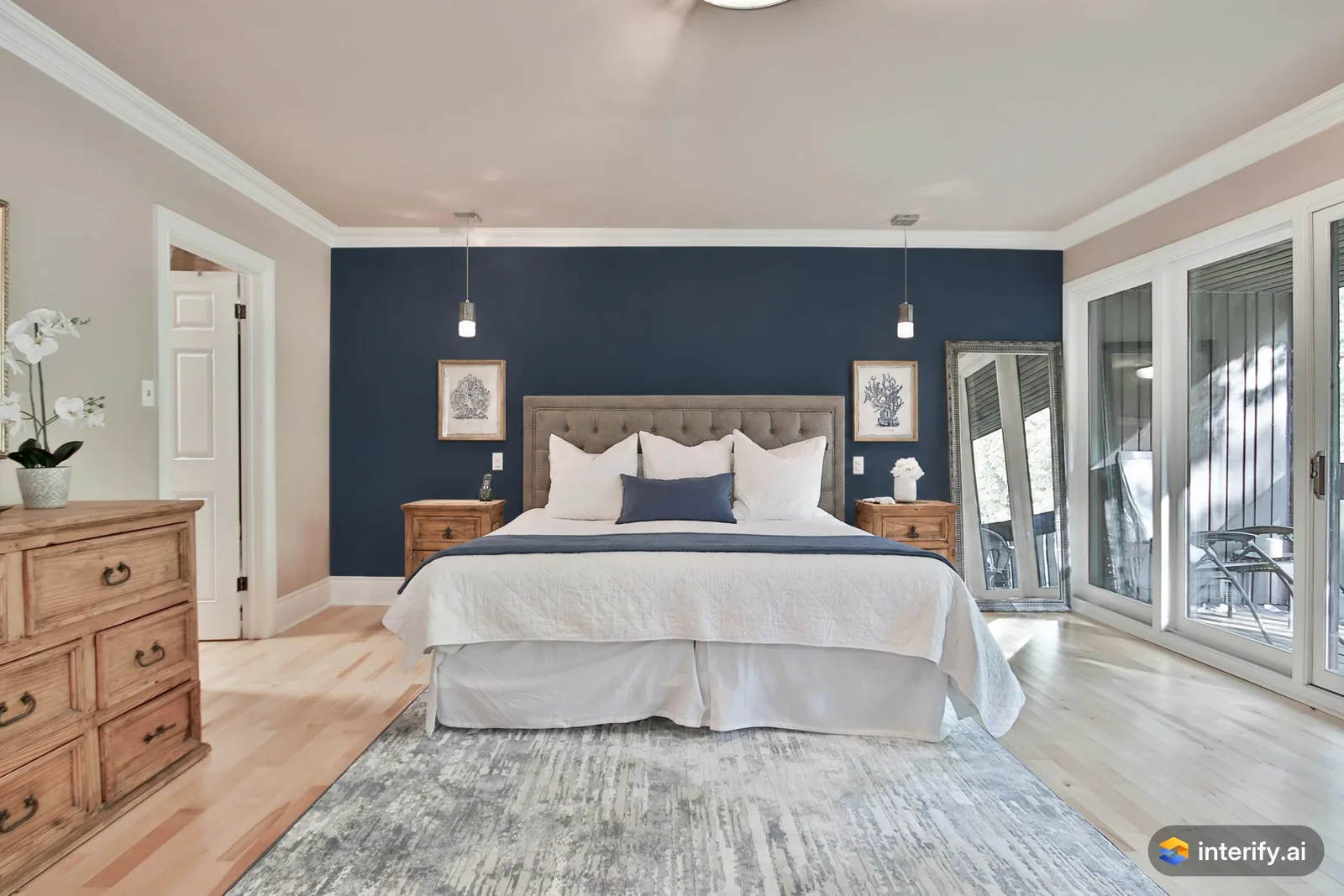
Bedroom: navy accent wall
Bedroom
- Paint this wall deep navy blue
Made with Interify 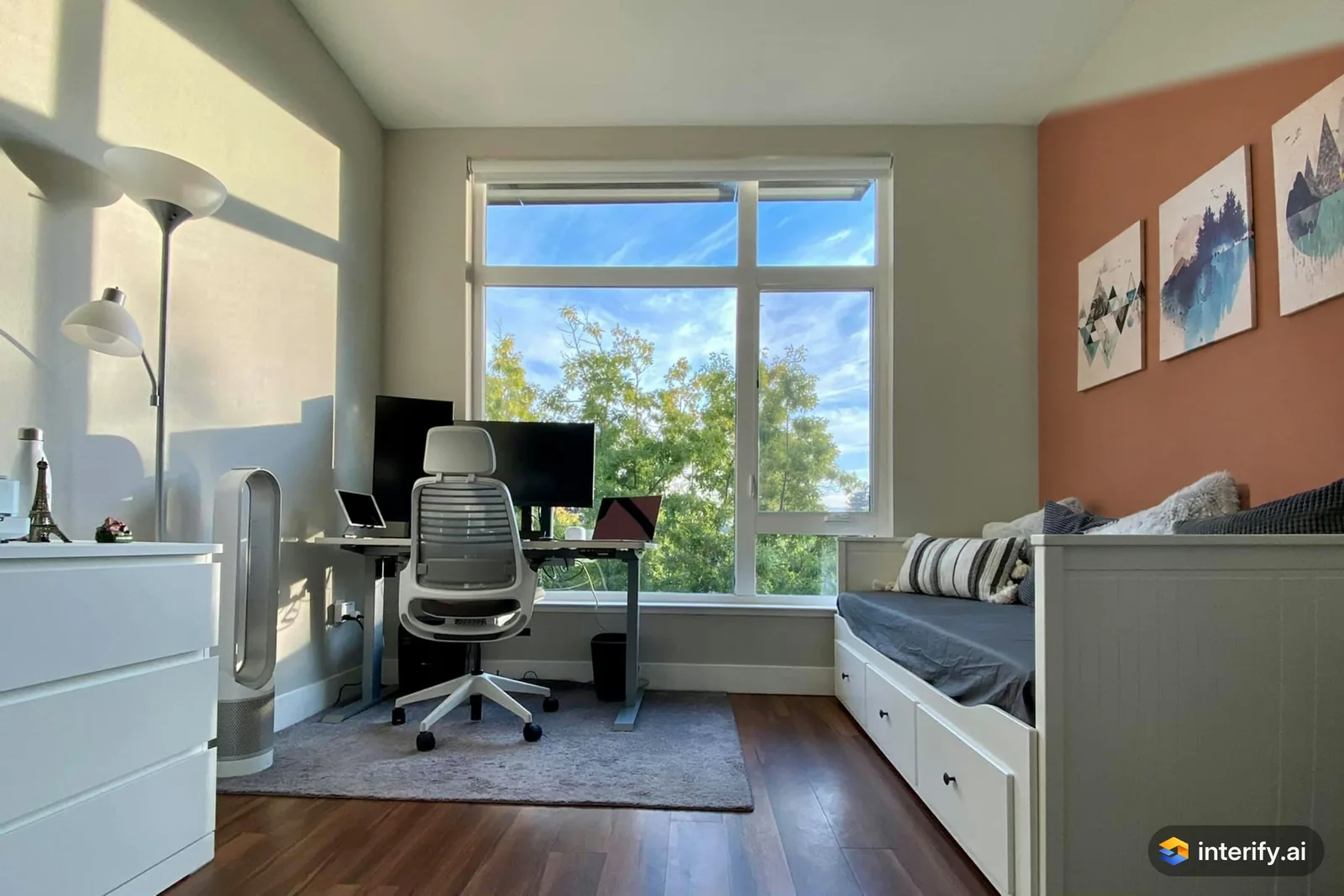
Home office: terracotta wall
Home office
- Paint this wall muted terracotta
Made with Interify 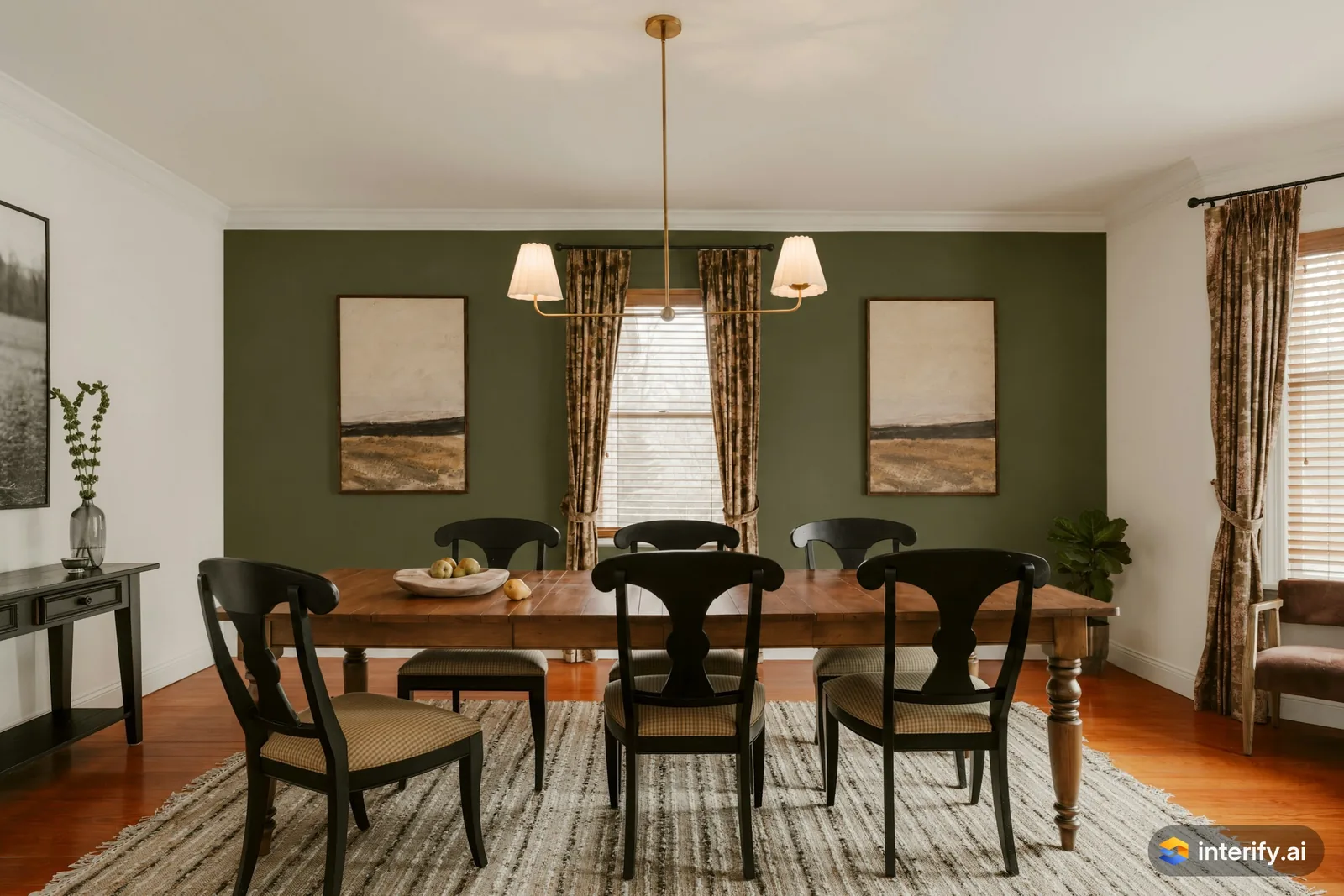
Dining room: olive walls
Dining room
- Paint the walls deep olive green
Made with Interify
Common questions
Can I see a paint color on my own wall?
Yes. Upload a photo, mark the wall, set the action to Change color and name the color and finish. With no style, only the marked wall changes and the trim, ceiling and furniture stay as they were.
Can I use a specific brand color name?
You can write it in the note and the result will be close in tone, but it is not a color match. For the real color, get a sample and paint a patch on the wall.
Can I preview an accent wall only?
Yes. Mark one wall and leave the others unmarked. That is what a directed edit with no style does: the other walls stay as they were.
Why does the color look different from the paint store?
Because a preview inherits the light in your photo and the color profile of your screen. That is also why the same color looks different in the store and at home.
Read on
- Living roomMark the wall, floor or sofa in a photo of your own living room, say what each should become, and get a photorealistic preview of the room.
- BedroomSee bedroom makeover ideas in a photo of your own room: mark the wall behind the bed, the floor or the closet and say what each should become.
- WallpaperSee wallpaper in your own room: mark the wall, describe the pattern, scale and colors, and judge it against your real furniture and light.
- LightingPreview light fixtures in your own room: mark where a pendant, wall light or lamp goes, describe it, and judge its scale and placement in your space.
- HomeownersDecide what to change in your own home before you spend: preview a room, compare versions, and show the result to whoever you are deciding with.
- How it worksThe whole walkthrough, from the photo to the share link.
See it in your own room
The sample room needs no account. Your own photo starts with 3 credits free and no card.