

Style presets
Pick a style, or write your own instruction
A style preset restyles the whole photo in a named interior style, such as Scandinavian, Japanese or Mid-Century Modern. You can use one on its own, or alongside marked areas, which keep following their own notes.
Key facts
- Style presets
- 20 styles: English Country, French Provincial, Mediterranean, Art Deco, Scandinavian, Minimalist, Danish Hygge, Norwegian Cabin, Japanese, Chinese Classical, Korean Hanok, Balinese, Mid-Century Modern, Farmhouse, Coastal, Contemporary, Bohemian, Rustic, Eclectic, Industrial.
- Whole-room instruction
- Free text in place of a style, or alongside one. On its own it restyles the whole photo; with marked areas and no style it directs those areas.
- Output
- HD results, up to 3072 px
- Cost of a version
- 1 credit. Packs start at $9 for 30 credits, down to $0.16 a credit
What it does
A style is a description of an interior the model already understands: its materials, its palette, the kind of furniture in it. Picking one tells the model to treat the whole photograph that way, while keeping the room's geometry, its windows and the direction of its light.
A style and marked areas work together. The style sets the room; each area's note says exactly what that part becomes. Marking a sofa “green velvet” inside a Scandinavian run gives you a Scandinavian room with the sofa you asked for.
If none of the styles is the room in your head, write the instruction yourself. A whole-room instruction is free text, and on its own it restyles the whole photograph the way a preset does. Alongside a style it adjusts that style; alongside marked areas with no style it directs those areas, because everything outside them is still taken from your photo.
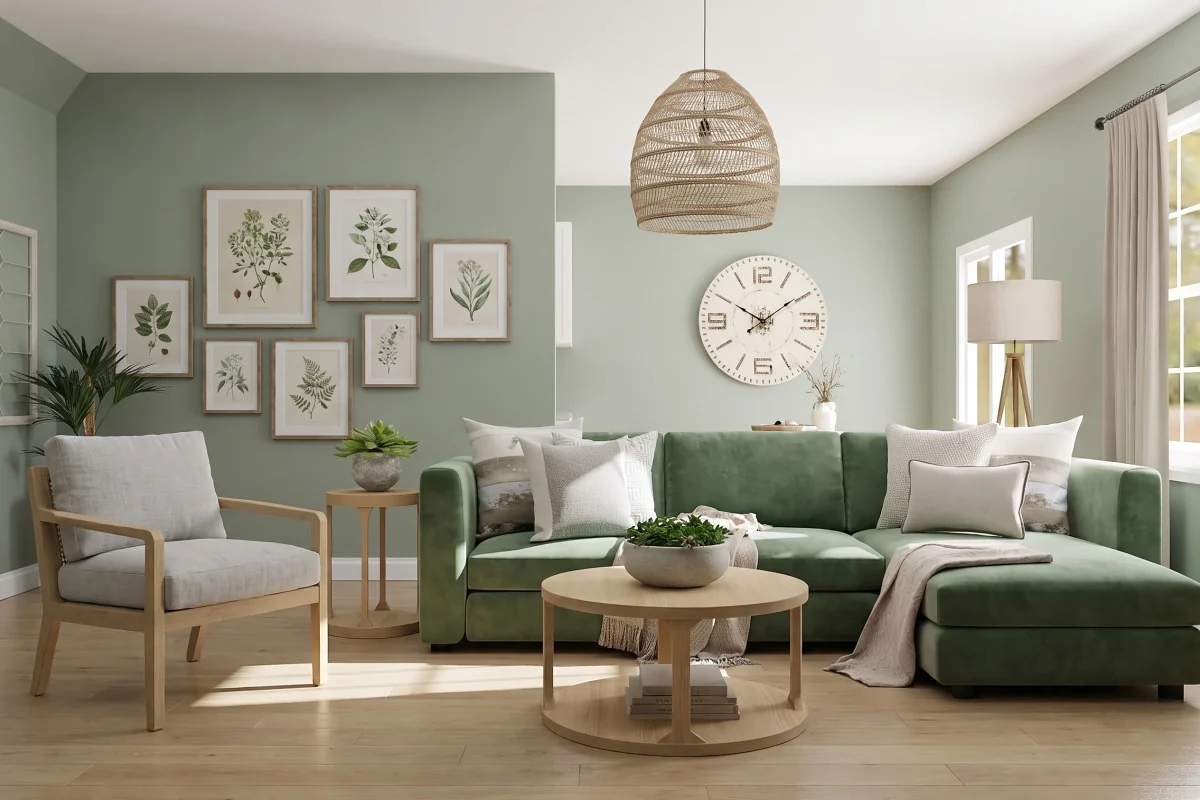
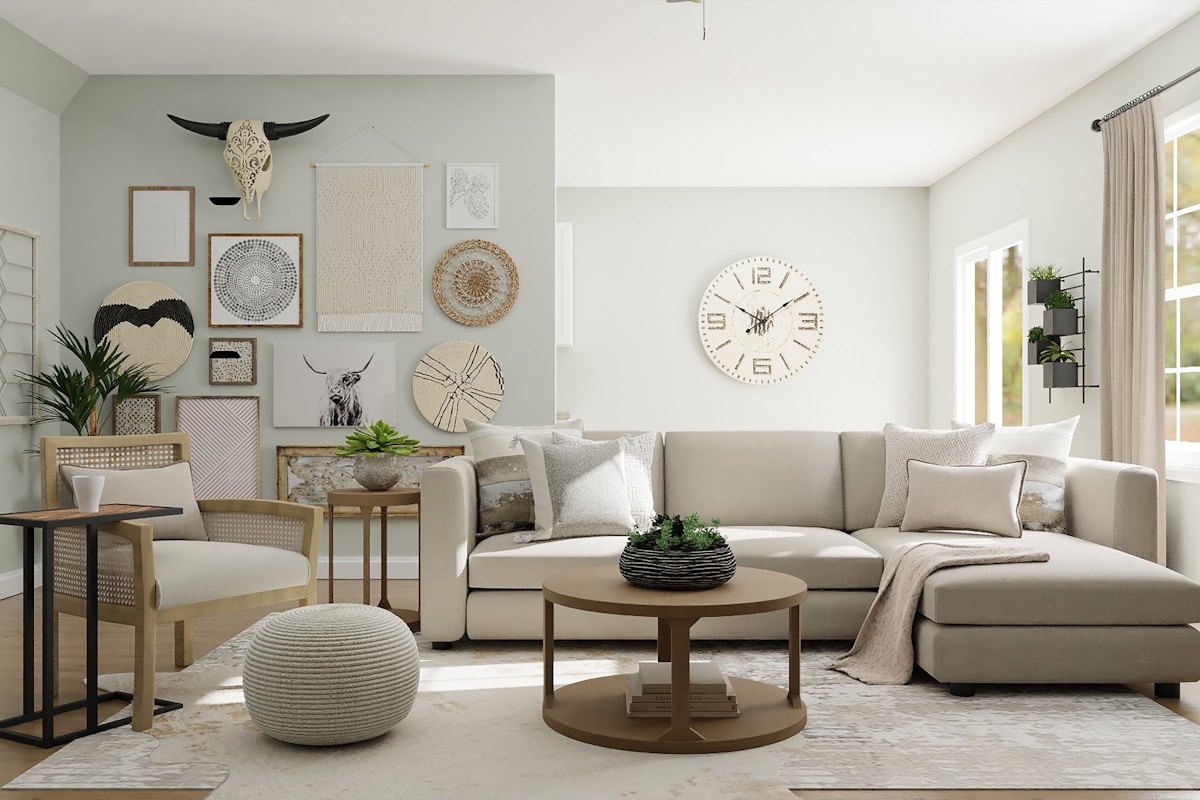
The before and after at the top of this page is one Scandinavian version of the sample room, made in advance with Interify. The sofa and the floor were marked; the style did the rest of the room.
How to use it
Open the style picker
The styles sit beside the canvas in the editor, each with a thumbnail. Pick one and it is selected for the next version.
Or write your own instruction
The whole-room instruction box takes free text: “warm minimalist, pale plaster walls, oak and linen”. Use it when the style you want isn't in the list.
Mark anything that must be specific
A style decides the room's mood, not the exact sofa. If a piece or a color matters, mark it and write the note.
Generate and compare
Each version uses one style, with or without an instruction beside it. To see the same room two ways, make a second version with Tweak.
What it can't do
Worth knowing before you spend a credit on it.
- One style per version. An instruction can go with it, but a second style can't; to compare two styles, make a second version.
- A style changes the whole photo, including parts you may want kept. Mark only, with no style, when you want one surface changed and nothing else.
- Style names mean different things to different people. If a result reads wrong, say what you actually want in the instruction instead.
- A style can't add floor space, move a wall or change the room's proportions. It redresses the room you photographed.
Questions about Style presets
Can I use two styles in one version?
No. A version takes one style, and you can add a whole-room instruction to it, but not a second style. Make a second version with Tweak to see the other one, and compare them side by side.
What if the style I want isn't in the list?
Write a whole-room instruction instead. On its own it restyles the whole photo the way a preset does, so you can name the materials and the palette yourself, and you can also add one to a preset to adjust it.
Will a style change my walls and floor too?
Yes. A style restyles the whole photo. If you want the floor left alone, generate without a style and mark only the parts that should change.
Does the room still look like my room?
The walls, windows, doorways and the direction of the light are kept; what changes is the dressing. A style is a redecoration of the room you photographed, not a new room.
Read on
- Mark and describeOutline an area and say what it should become.
- Iterate on a versionTry again, Tweak and Use as base, without starting over.
- Compare and sharePut the result beside the original, then send a link.
- How it worksThe whole walkthrough, from the photo to the share link.
- ExamplesBefore and afters made with Interify.
Try it on the sample room
No account needed to see how it works. Your own photo starts with 3 credits free and no card.